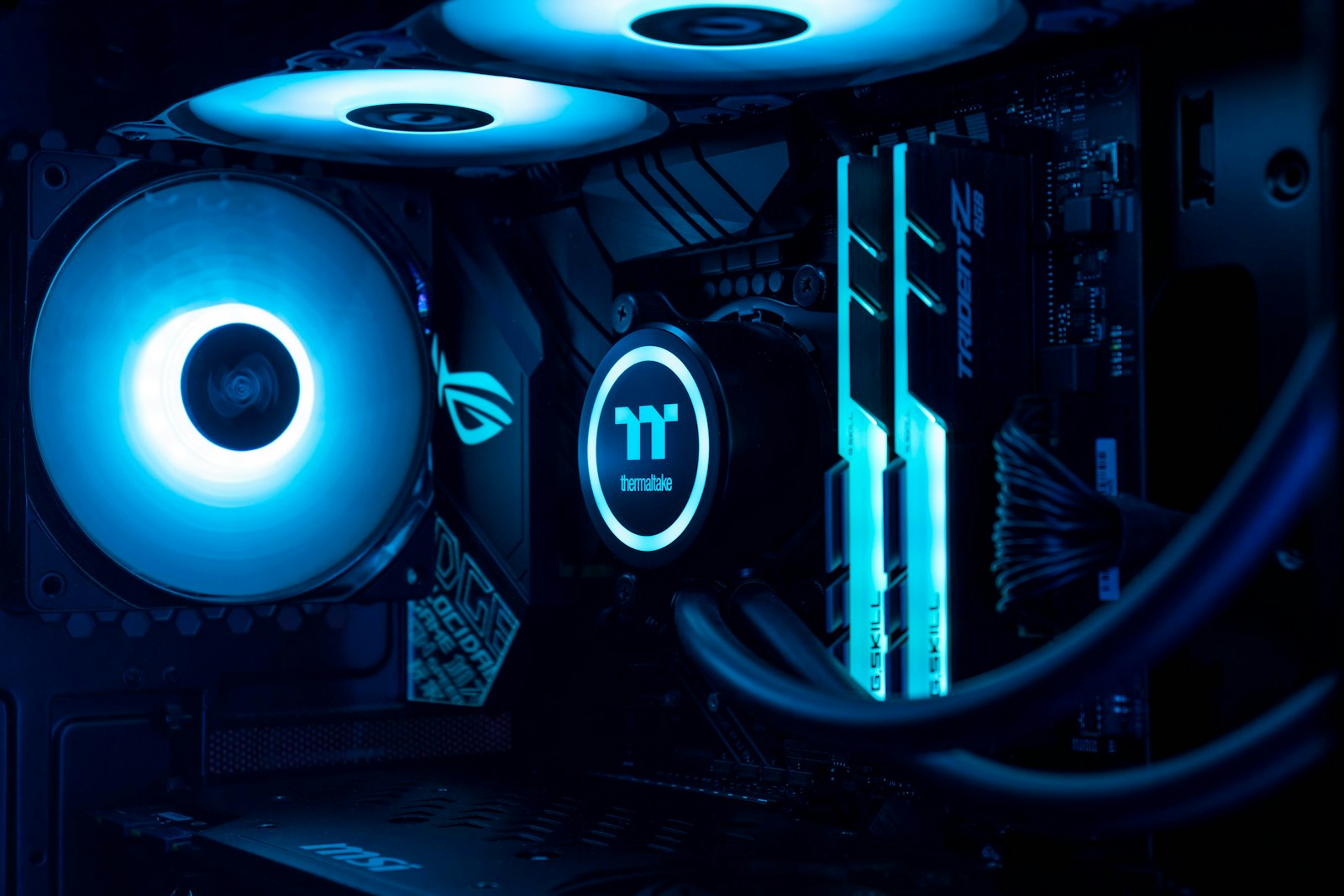
Whether you are checking if a game will run, planning an upgrade, or selling your PC, knowing your specs is essential. Windows 11 has multiple built-in ways to find this information — no third-party tools required.
Method 1: The 5-Second Method (Settings App)
This is the fastest way to see your CPU, RAM, system type, and Windows version. Press Windows + I to open Settings, then click System > About. Everything you need is right there: processor name and speed, installed RAM, system type (64-bit), and your Windows edition. For most quick lookups, this is all you need.
Method 2: System Information (msinfo32)
For the deepest hardware dive built into Windows, type msinfo32 into the Start menu and hit Enter. This opens System Information — a hidden gem that shows BIOS version, motherboard manufacturer, system model, virtualization status, and dozens of other technical details. Expand the categories on the left for storage, display, and network info.
Method 3: DirectX Diagnostic Tool (dxdiag)
If you specifically need GPU details — VRAM amount, driver version, supported DirectX feature levels — this is the tool. Press Windows + R, type dxdiag, and press Enter. The Display tab shows your graphics card details, the Sound tab covers audio devices, and the Input tab lists connected peripherals.
Method 4: Task Manager Performance Tab
Hit Ctrl + Shift + Esc to open Task Manager, then click Performance. Each tab (CPU, Memory, GPU, Disk) shows live usage AND key specs. The CPU tab reveals your processor base speed, cores, threads, L1/L2/L3 cache, and virtualization status. Memory shows your DIMM slots used, speed (MT/s), and form factor.
Method 5: PowerShell (For Power Users)
Right-click Start and choose Terminal (Admin). Paste this command: Get-ComputerInfo | Select-Object CsName, WindowsProductName, OsArchitecture, CsTotalPhysicalMemory, CsProcessors. This gives you scriptable, exportable output — perfect for IT pros, inventory audits, or when you need to send specs to someone.
The One Free Tool Worth Installing: HWiNFO
If you need more than what Windows shows — like real-time temperatures, voltages, fan speeds, or detailed sensor data — install HWiNFO. It is free, portable, and used by hardware reviewers worldwide. It is the only third-party tool we recommend. Skip CCleaner, skip Speccy, skip random “PC info” apps — HWiNFO does it all.
What to Do With Your Specs
Check game compatibility against minimum/recommended specs on Steam, identify upgrade bottlenecks (usually RAM under 16GB or a slow HDD), provide accurate info when selling or trading, send to tech support for troubleshooting, and match your hardware to manufacturer driver pages — never trust random driver updater tools.
Bookmark this guide — you will come back to it more than you think.
Frequently Asked Questions
How long does this process take?
Do I need any special tools?
Will this void my warranty?
What if something goes wrong?
You Might Also Like

How to Make Windows 11 Faster: 18 Tweaks That Actually Work (2026)
Windows 11 ships with bloat that costs you 15-30% of your hardware performance. Here are 18 free tweaks that g…
PC Won’t Turn On? 12 Fixes That Actually Work (2026 Guide)
When your PC will not boot, panic is the worst response. Here is the systematic checklist we use in our test l…

How to Diagnose Random Game Crashes on Windows 11 (2026 Edition)
Random crashes are the worst kind of bug. Here’s a systematic process to find the actual cause — based o…

How to Stop Windows 11 From Spying on You (Without Breaking Anything)
Windows 11 sends a lot of telemetry by default. Here’s how to dial it back to the minimum without breaki…