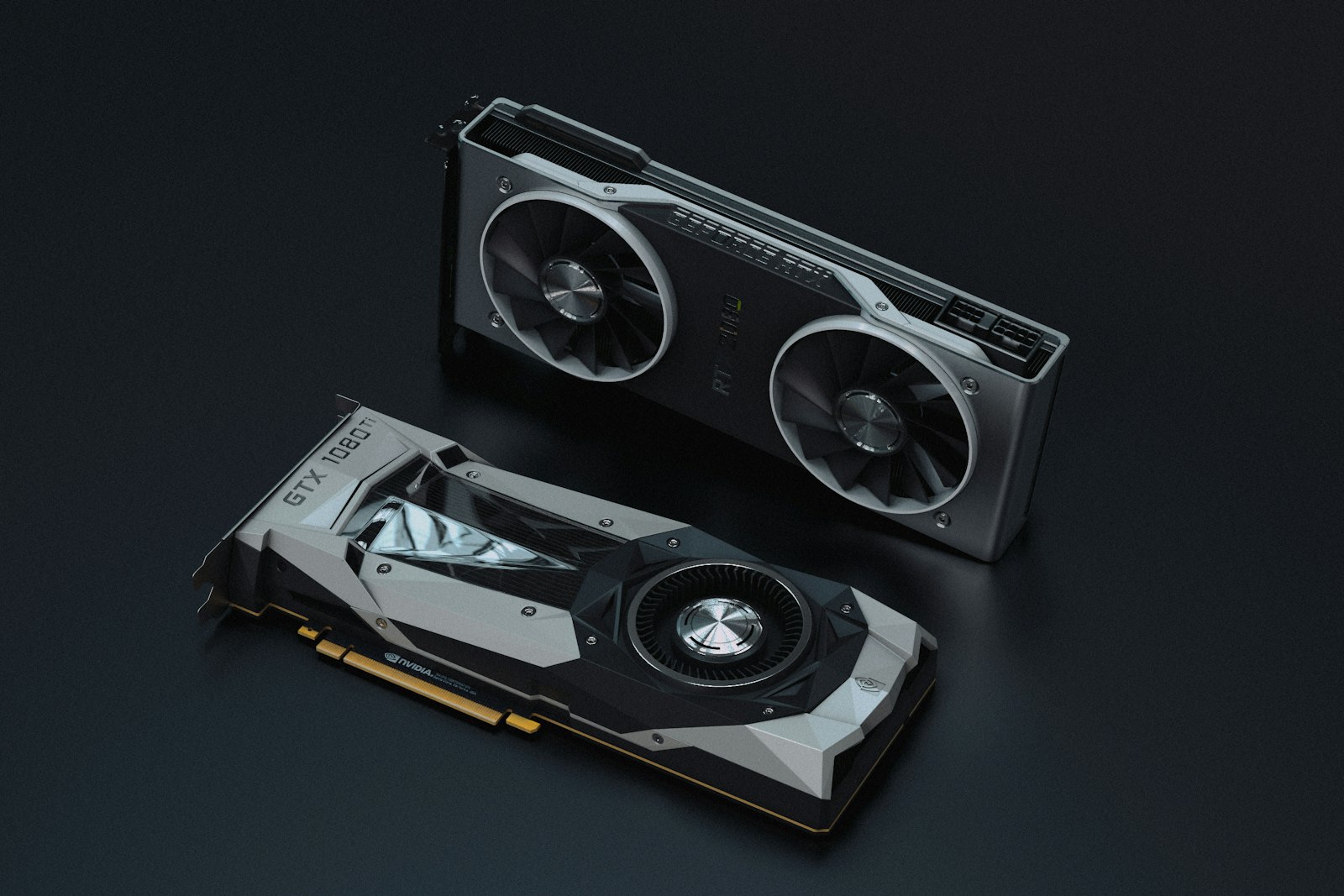
A dead PC feels catastrophic, but in our experience repairing hundreds of “broken” rigs, more than 80% of cases are fixed in under 15 minutes with this systematic approach. Do not replace parts blindly — diagnose first.
Step 1: Is It Truly Dead, or Just Will Not Boot?
There is a huge difference. “Dead” means no fans spin, no lights, nothing. “Will not boot” means it powers on but does not reach Windows. Identify which one you have — the fixes are completely different. If you hear fans or see lights, jump to Step 7.
Step 2: Check the Obvious (Do Not Skip This)
Is the wall outlet working (test with a lamp)? Is the PSU switch on the back set to “I” (on)? Is the power cable fully seated in both the PSU and the wall? In our experience, roughly 1 in 8 “dead PC” tickets is fixed at this step.
Step 3: Reseat the Power Connectors
Open the case. Find the 24-pin ATX connector on the motherboard and the 8-pin (or 4+4) CPU power connector near the CPU socket. Unplug each, then firmly push them back in until they click. Modular PSUs are notorious for partial seating.
Step 4: The Paper Clip PSU Test
Unplug the PSU from the motherboard. Find the 24-pin connector. Bend a paper clip into a U-shape. Insert one end into the green wire socket and the other into any black wire socket. Plug PSU into the wall, flip the switch — if the fan spins, the PSU is alive. If not, replace it.
Step 5: Clear CMOS
A corrupt BIOS setting can prevent boot. With the PC unplugged, find the CMOS battery (round silver coin on the motherboard). Remove it, wait 60 seconds, reinstall. Alternatively, use the CLR_CMOS jumper or button.
Step 6: Test With Minimal Hardware
Strip the PC to the basics: motherboard, CPU, one RAM stick, and PSU. No GPU (if your CPU has integrated graphics), no storage, no extras. Try to POST. If it works, add components back one at a time to find the failed part.
Step 7: PC Powers On But No Display
Fans spinning but a black screen? First, check that the monitor cable is in the GPU (not the motherboard) if you have a dedicated GPU. Try a different cable (HDMI / DisplayPort). Try a different monitor. Reseat the GPU — pull it out, blow dust off the contacts, push it firmly back in until the clip clicks.
Step 8: Listen for Beep Codes
If your motherboard has a speaker, beep patterns reveal the issue. Generally: one short beep = normal POST, continuous beeps = RAM issue, three beeps = video issue, no beeps with fans = CPU or motherboard issue. Check your specific board manual for exact codes.
Step 9: Check Motherboard Debug LEDs
Modern motherboards have four debug LEDs (CPU, DRAM, VGA, BOOT) that light up in sequence during POST and stay lit if a stage fails. If DRAM is stuck on, you have a RAM problem. If VGA is stuck, GPU.
Step 10: Reseat the RAM
Pop out all RAM sticks. Blow out the slots with compressed air. Push the sticks back in firmly until both side clips click into place. Try with just one stick in slot A2. If it boots, the issue was either seating or a bad stick — test each individually.
Step 11: Disconnect All Drives and USB Devices
A failing SSD or a problematic USB device can hang the boot process. Disconnect every drive except the boot drive. Unplug every USB device except keyboard and mouse. If it boots now, reconnect things one at a time to find the culprit.
Step 12: When It Is Time to Call for Help
If you have worked through all 12 steps and the PC still will not post, you are likely looking at a dead CPU, motherboard, or PSU. Visit r/buildapc or r/techsupport with a video of the symptoms and your full parts list.
Prevention: 3 Things That Kill PCs
The biggest PC killers are cheap PSUs (buy Corsair, Seasonic, EVGA, or be quiet!), dust (blow out every six months — overheating kills components silently), and power surges (always use a surge protector or UPS).
You Might Also Like
Best Gaming PC Builds for Every Budget (500 USD to 5000 USD, 2026)
Five complete gaming PC builds, parts-list verified and price-checked weekly. From a 500 USD 1080p esports rig…
How to Check Your PC Specs on Windows 11 (5 Easy Methods, 2026)
Find your CPU, GPU, RAM, storage and motherboard details in under 60 seconds — five built-in methods plus the …
How to Clean Your PC Without Breaking Anything: The 2026 Guide
Dust kills more PCs than power surges. Here’s how to do a thorough, safe cleaning that adds years to you…
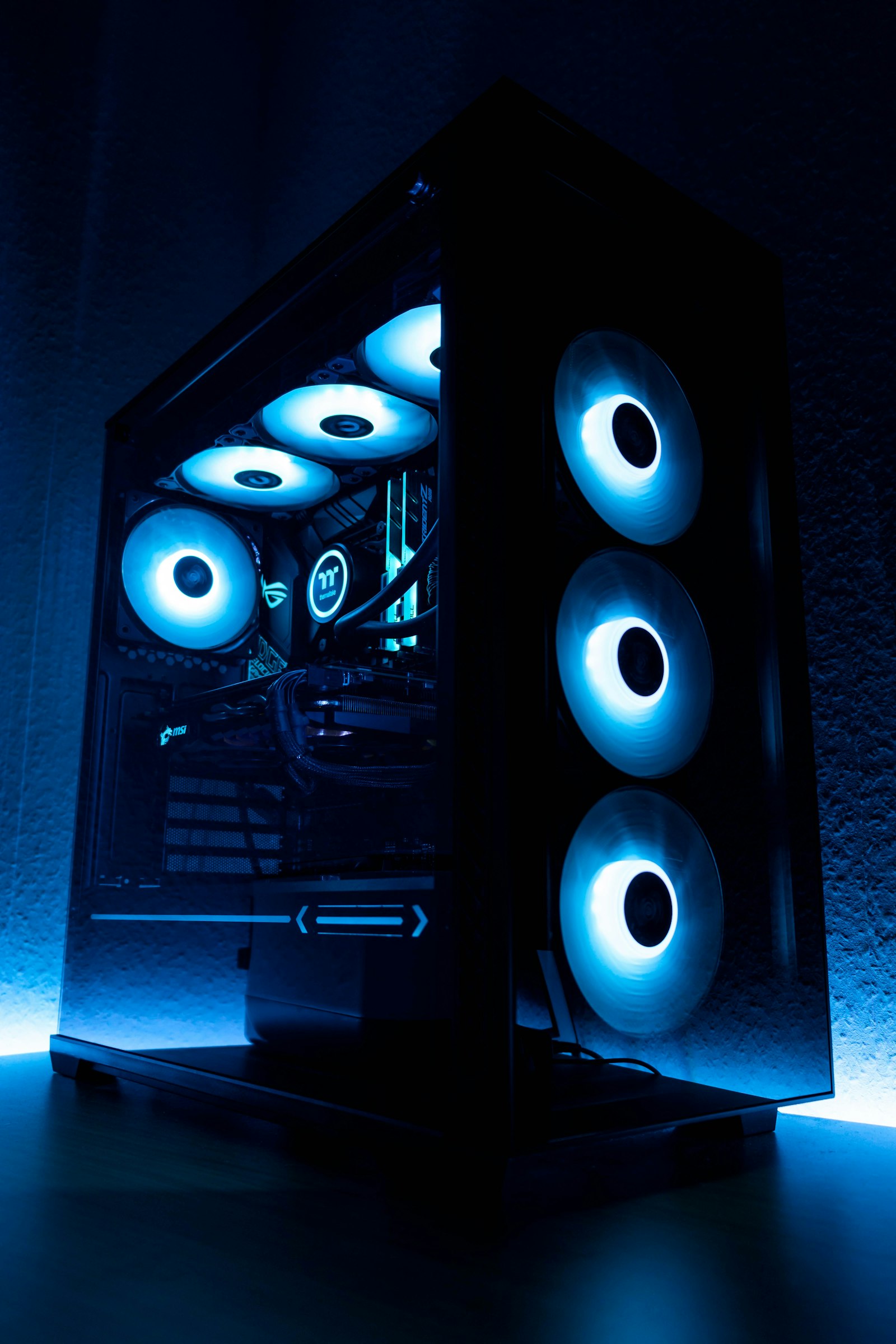
How to Build a Gaming PC in 2026: Step-by-Step Guide
A complete, beginner-friendly guide to assembling your first gaming PC — from picking parts to first boot. Wit…